
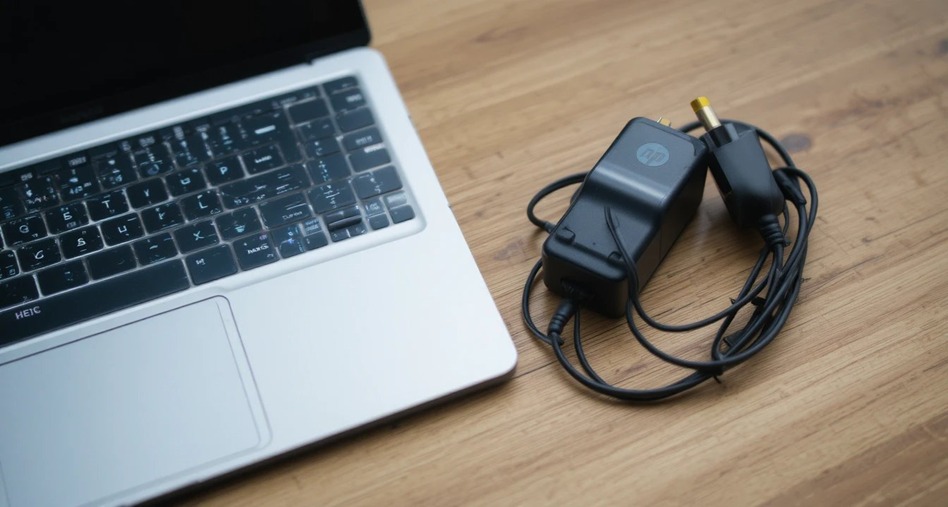
Introduction: Why Your HP Laptop Charger Matters More Than You Think
Laptops produced by HP are some of the most reliable machines available. Students, professionals, and everyday users count on HP laptops for their daily computing needs; however, a charger can be the cause of failure of even the most powerful HP laptop.
A malfunctioning or incompatible charger will cause slow performance, random reboots, and long-term damage to a battery, regardless of whether it’s an HP Pavilion, Envy, Spectre, or EliteBook. It is therefore critical to know how the HP charger works with your HP laptop in order to maximize your HP laptop’s capabilities.
Types of HP Laptop Chargers
Not all HP chargers are built the same. The right one depends on your model, usage habits, and budget.
Original HP Charger
An original HP charger designed to HP’s specifications is the safest power source for any HP laptop. The charger will provide the correct voltage, wattage, and connector fit. When possible, you should always choose an original HP charger over other alternatives, particularly when you’re using a high-performance laptop or a very recent-model laptop.
HP AC Adapter (Barrel Connector)
The HP laptop AC adapter is the most common charger type. It uses a round barrel-tip connector and comes in various wattages, typically 45W, 65W, or 90W. You’ll find these adapters across the HP 15, HP 250, and HP ProBook series.
USB-C Power Adapter
HP’s latest laptop models (Such as the HP Spectre x360 or EliteBook 840) have switched to USB-C charging. With USB-C chargers, you can now use the same charger to power multiple devices by using the USB Power Delivery (PD) feature of the USB-C charger (which includes charging items like laptops, smartphones, tablets, etc.). Your replacement charger should support your laptop’s required wattage (typically at least 65W).
Compatible HP Laptop Chargers
You can find a lot of inexpensive Laptop Chargers from 3rd Party or Compatible Sources – these work fine as long as they provide the proper Voltage/Wattage rating. Always look for certification markings such as CE, UL or ROHS on Third Party Charger packaging, to help you identify counterfeit products which could hurt your battery and create fire hazards.
Common HP Laptop Charging Issues and How to Fix Them
HP laptop charging issues are more common than most users expect — and most are solvable at home.
Charger Not Working or No Power Light
Your HP Laptop’s power adapter does not show a power light, and you can do the basic troubleshooting. You can try plugging your charger into another wall outlet, and try to connect it to the wall without going through a power strip, and check for visible damage on the connector ends of your charger cable. Another common cause of an incompatible charger not working is that the charging cable is damaged, which can be seen near both the brick and the end of the charging cable where the two connect.
Battery Not Charging When Plugged In
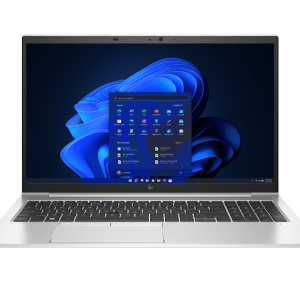
One of the most commonly reported charging issues for HP laptops is that they will charge, but only while plugged into an AC outlet. The battery’s percent charge will stay the same regardless of how long the laptop is plugged in or how much power the laptop uses during use. The most common solutions to this issue are to update the laptop’s battery drivers via Windows Device Manager, run the HP Battery Check utility, provided with the HP Support Assistant, or update the laptop’s BIOS, since most BIOS updates will include improvements to power management and battery management. HP laptop and charger
Slow Charging
Slow charging usually points to an underpowered HP laptop charger replacement. If you’re using a compatible adapter with lower wattage than required, your laptop may charge at a trickle or not charge at all under load. Always match or exceed the original adapter’s wattage.
Laptop Only Works When Plugged In
If removing the charger causes your HP notebook to shut off instantly, the issue is likely a dead battery rather than a charger problem. The HP notebook charger is functioning correctly — the battery simply can’t hold a charge anymore. A battery replacement is the appropriate fix here.
How to Choose the Right HP Laptop Charger
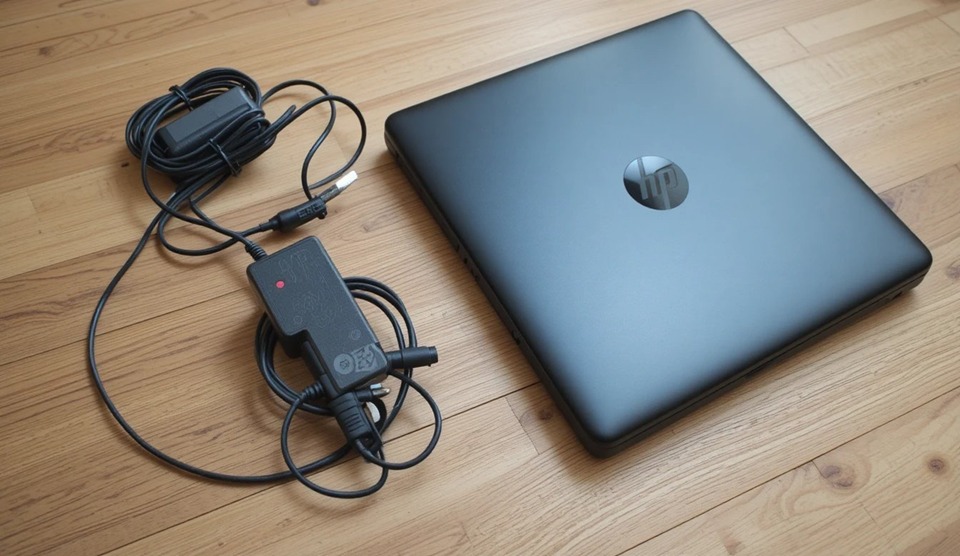
Buying the wrong charger is a costly and avoidable mistake. Here’s what to check before purchasing any HP laptop charger replacement.
Match Your Model Number
Flip your laptop over and locate the model number on the sticker. Enter it on HP’s website to find the exact compatible adapter. This removes all guesswork.
Check Wattage, Voltage, and Amperage
Your original HP laptop AC adapter will display values like 19.5V / 3.33A / 65W. A replacement — whether original or compatible — must match these values. Using a lower voltage can cause the laptop to run only on AC power without charging the battery.
Verify the Connector Tip
HP uses several connector sizes across its product lines. A tip that physically fits isn’t always electrically compatible. Double-check the connector type alongside the electrical specs.
For USB-C Models
If your HP laptop uses USB-C charging, confirm the replacement supports USB Power Delivery at the correct wattage. Not all USB-C chargers are equal — a phone charger will not power a laptop effectively.
HP Laptop Battery Charging Tips to Make It Last Longer
Good charging habits protect both your HP laptop and charger over the long term.
Avoid extreme charge levels. Keeping your battery between 20% and 80% reduces wear significantly. HP Battery Health Manager (available in BIOS on select models) lets you set a charge limit automatically.
Never block the vents while charging. Always charge on a hard, flat surface. Soft surfaces like beds and sofas trap heat, which degrades the battery faster and stresses the HP laptop power adapter.
Don’t bend or tightly wrap the cable. Sharp bends near the connector ends break internal wires over time. Coil the cable loosely when storing and avoid running it under furniture or through tight spaces.
Use a surge protector. Power spikes can damage your HP laptop AC adapter and motherboard in seconds. A quality surge protector is cheap insurance.
Keep drivers and BIOS updated. Many HP laptop charging issues are software-related. HP regularly releases BIOS updates that improve battery management and charging performance.
Your HP laptop and charger are a team, and treating them that way pays off. Whether you’re shopping for an HP laptop charger replacement, troubleshooting a battery issue, or simply trying to extend your adapter’s lifespan, the key is using the right hardware and developing consistent charging habits.
When in doubt, always verify specs before buying and refer to HP’s official support site for model-specific guidance. A small amount of knowledge upfront saves you from expensive repairs down the line.

Add comment