
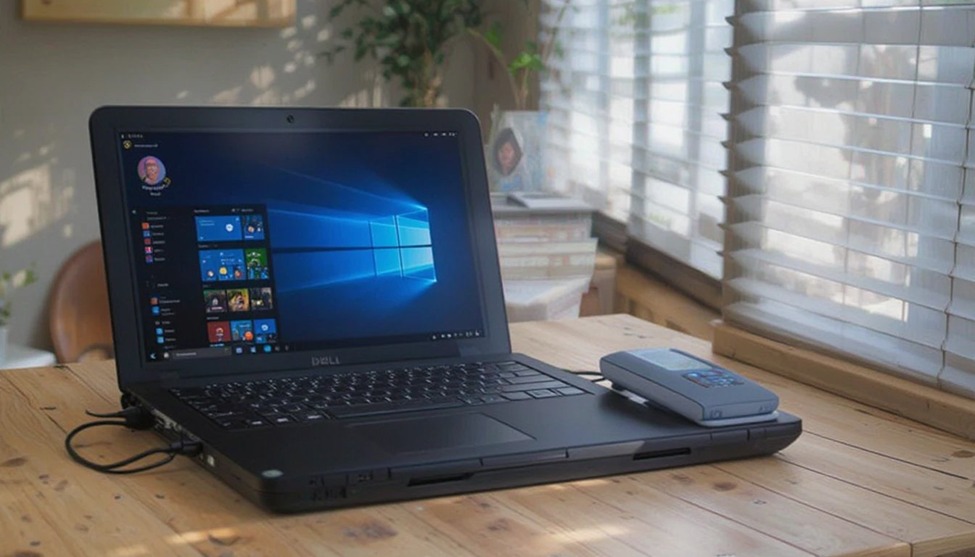
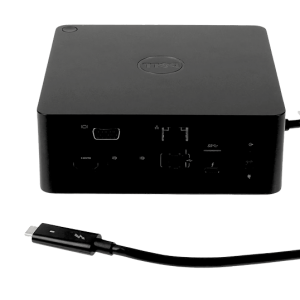
You may enjoy using your Dell laptops at work and find that a docked or external display increases productivity. By connecting via one cable to a Dell docking station, you can easily plug in multiple devices, such as your monitor, keyboard, and mouse, as well as an Ethernet connection. No more having to deal with multiple cables when using your Dell, as you only need to connect one to the dock and will be ready to start working.
Types of Dell Docking Stations
USB-C Docking Station
By utilizing one USB Type-C connection, the Dell USB-C docking station will provide data transfer speed, video display of your selected peripheral, and power to the peripheral all through one single cable connection. This means that this dock will work with virtually all current Dell laptops and provide a stable environment for daily use without requiring Thunderbolt technology.
Thunderbolt Dock
For maximum bandwidth between the dock and your computer or device, a Dell Thunderbolt docking station uses either the Thunderbolt 3 or Thunderbolt 4 specification. It also allows users to connect two ultra-HD (4K) screens simultaneously; transfer extremely large files at extremely fast speeds; and charge laptops using high-wattage power. Perfect for creative professionals and other users who demand high performance from their computing hardware.
Universal Docking Station
Universal Docks can be used with many brands of laptops, not just Dell. They connect with either USB-A or USB-C by using cable connectors. Many Universal Docks offer similar levels of compatibility to Thunderbolt Docks; however, there may be some additional advanced features available on Thunderbolt Docks that are not available on Universal Docks.
Key Features of Dell Docking Stations
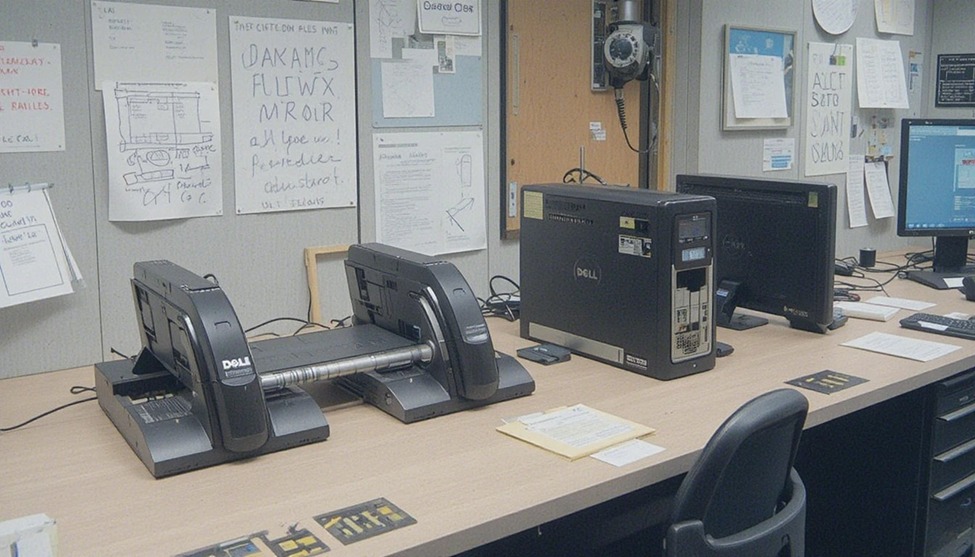
Multi-Monitor Support
Most Dell docking stations support dual monitor setups, and premium models support triple displays. This is essential for multitasking, design work, or finance roles where screen space matters.
Power Delivery
Dell docks charge your laptop while connected. Depending on the model, power delivery ranges from 65W to 130W, which is enough to charge most Dell laptops at full speed without a separate charger.
Ports and Connectivity
A standard Dell dock includes HDMI, DisplayPort, USB-A, USB-C, SD card slot, and a gigabit ethernet port. This covers everything most professionals need at their desk.
Plug-and-Play Setup
Most Dell docking stations are plug-and-play with Dell laptops. No lengthy driver installation needed. Connect the cable and your peripherals are ready within seconds.
Benefits of Using a Dell Docking Station
Higher productivity: One cable replaces six. You sit down, connect, and work immediately.
Cleaner desk: Fewer loose cables mean a more organized and focused workspace.
Flexible working: Easily move between home and office without reconfiguring your setup each time.
Dual monitor docking station Dell setups allow expanded screen real estate, improving workflow significantly.
Popular Dell Docking Station Models
Dell WD19
A solid mid-range dock with USB-C connectivity, dual monitor support, and 90W power delivery. Great for everyday office use.
Dell WD19S
An upgraded version of the WD19 with 130W power delivery, making it compatible with higher-performance Dell laptops that need more wattage.
Dell WD22TB4
One of the best Dell docking stations for power users. It uses Thunderbolt 4, supports up to three monitors, and delivers 130W charging. Premium build, premium performance.
Dell D6000
A universal USB-C dock that works across multiple laptop brands. Supports triple 4K display output via DisplayLink technology. A strong choice for mixed-device environments.
Quick Buying Guide
Ensure Dock Compatibility:
Before purchasing a dock, be certain that it is compatible with the Dell Laptop Model you currently own.
Determine Peripheral Connections:
Make a list of all devices that need to be connected to the dock and match that list of devices to the ports available on the dock.
Confirm Monitor Configuration:
If you will be using a dual monitor setup and will be connecting with another device in addition to the Dell Laptop, check that the dock is set up to support the respective resolution required to operate dual displays.
Know Your Budget:
Entry-level docks will cost approximately $100 or more, while Thunderbolt versions can range from $200-$350.
Power Needs:
High-powered laptops require docking stations capable of providing at least 130Watts of power.

Add comment