
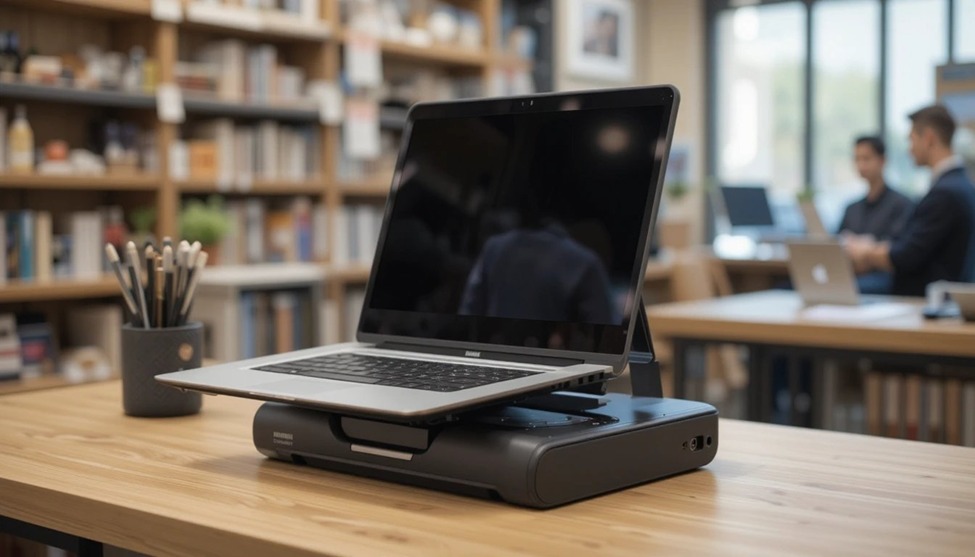
Transform your laptop into a full workstation in virtually no time with a docking port. This is a great way to stay organized at work by removing cable clutter, whether you work from home or the office (highly recommended). This guide provides you with everything you need to choose the best one for your use case.
What is a Dock Docking Station?
With a dock docking station, you can connect your laptop to various devices with just one cable. You can connect your laptop to your display monitor, keyboard, mouse, ethernet, and more instantly by plugging in one cord.
This serves as a central hub for all of the devices to which you have connected, so you do not have to unplug and replug cables in order to connect to your devices every time you want to use them.
Types of Docking Stations
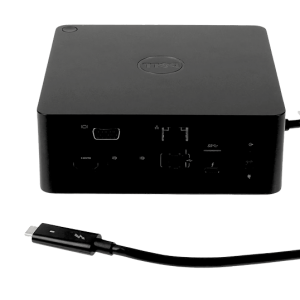
USB-C Dock
Current dock types are – USB-C dock (many modern laptops can use one USB-C or Thunderbolt cable to transfer data, video, and power all at once);
USB-A docking stations (designed for older laptops that do NOT have USB-C ports
USB-A stations have good connectivity, but limited bandwidth capability versus modern
USB-C docks) & Thunderbolt docks (built for power users,
Thunderbolt docks allow you to experience a higher speed of data transfer, adding a double view capability via using two 4K monitors, and charge your laptop at its maximum) & Wireless docking stations – a wireless docking station is.
cable-free” and will appeal greatly to a Minimalist style set. Though these types of docking solutions are available, they cost much more than traditional USB-C docks and can be found less regularly.
Key Benefits of the Dock Docking Station
Connects multiple peripherals with a single cable
Keeps your desk organized and free of cable clutter
Charges your laptop while in use (with USB-C Power Delivery)
Supports multiple monitors for expanded screen space
Easy to switch between office and home setups
Boosts overall workflow and multitasking efficiency
Key Features to Consider
Ports available: Look for HDMI, DisplayPort, USB-A, USB-C, SD card, and Ethernet
Power delivery: Ensure it charges your laptop at adequate wattage (65W–100W recommended)
Monitor support: Check how many displays it can handle and at what resolution
Compatibility: Confirm it works with your laptop brand and operating system
Build quality: Opt for aluminum builds for better heat dissipation
Brand reliability: Stick to established brands like CalDigit, Anker, Dell, or Belkin
Docking Station vs Hub: What is the Difference?
Designers or video-editors will benefit from fast processors and colour-accurate displays. Additional RAM and fast SSDs will give users who handle large volumes of files or data the speed they need. Essentially, most people who do not feel that a standard off-the-shelf model meets their needs can benefit from having their laptop custom-made to suit their requirements.
Key features to choose in a custom laptop
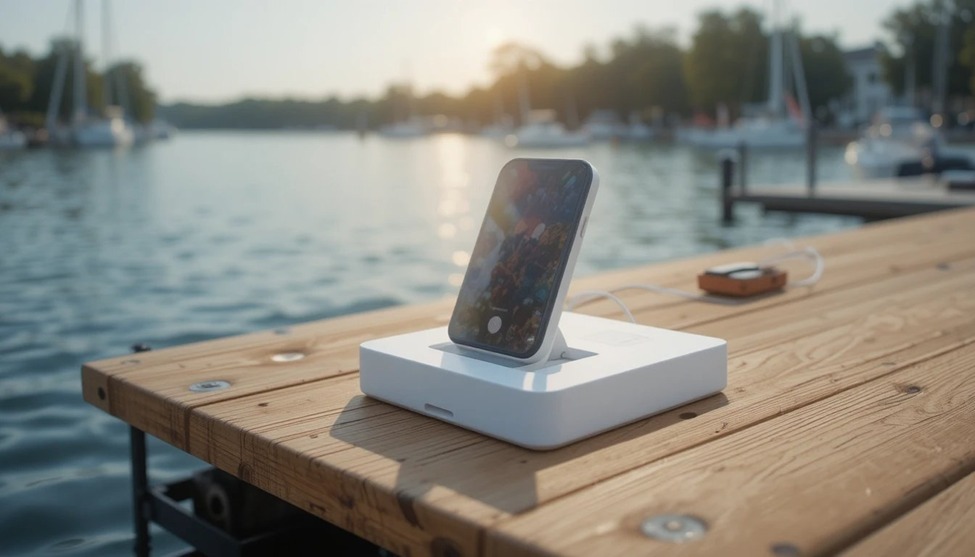
Many people confuse a multi-port hub with a laptop docking station. Here is a simple breakdown
| Feature | Docking Station | Multi-Port Hub |
|---|---|---|
| Ports | 6 to 15+ | 3 to 7 |
| Power Delivery | Yes (high wattage) | Limited or none |
| Monitor Support | Dual or triple | Single or none |
| Best For | Full desktop setup | Travel and light use |
| Price Range | $80 to $300+ | $20 to $80 |
A dock docking station is built for permanent desk setups. A hub is better for occasional, on-the-go connectivity.
Quick Setup Guide
- Follow these steps to get your docking station running in minutes:
- Unpack your docking station and place it on an appropriate surface (ventilated desk space).
Connect your external devices (display/monitor(s), keyboard, mouse, ethernet) to the docking station.
- Connect your docking station to your laptop with a USB-C or Thunderbolt cable.
- Install any drivers needed to operate your new docking station (most modern docking stations will be plug-and-play).
- Adjust your laptop display settings for your external display so they match what you are trying to accomplish (create an efficient setup).
- Verify all of the ports on your docking station are functioning to ensure your devices are all connected properly.
Most laptops will automatically detect USB-C docks; however, if you find that something does not work as anticipated, visit the manufacturer’s website for any necessary driver updates.

Add comment