

Best Dell Docking Station for Laptop the Complete Buying and Setup Guide
If you use a Dell laptop for work, one of the best upgrades you can make to your setup is adding a docking station. Instead of plugging and unplugging cables every time you sit down at your desk, a docking station lets you connect everything monitors, keyboard, mouse, Ethernet, and more with just one cable. Finding the best dell docking station for laptop that matches your needs can feel overwhelming with so many options available, but this guide will make the decision simple and clear.
At LaptopGiant, we carry a range of Dell docking stations and accessories that are tested for compatibility and reliability. Our customers trust us to help them find the right solution and docking stations are one of the most popular accessories we recommend alongside every Dell laptop purchase.
Why Every Dell Laptop User Needs a Docking Station
Working from a laptop alone has its limits. You are stuck with one small screen, limited ports, and a constant juggle of cables. A good docking station completely changes your workspace experience. Here is what you gain:
- Connect two or more external monitors for a proper multi-screen setup
- Use a full-size keyboard and mouse without adapters
- Get wired Ethernet for a faster and more stable internet connection
- Charge your laptop through the dock with a single USB-C cable
- Access SD cards, USB drives, and audio devices without dongles
- One cable connection and disconnection incredibly fast and clean
For anyone working from home or in an office, a docking station turns your Dell laptop into a full desktop replacement. And when you need to leave, you unplug one cable and go.
Best Dell Docking Station for Laptop: Top Models to Consider
When looking for the best dell docking station for laptop, Dell’s own lineup is the safest and most reliable choice. Here are the most popular options:
Dell WD19 Series
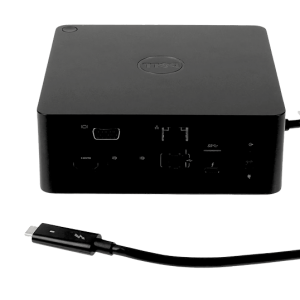
The Dell WD19 is one of Dell’s most popular and versatile docking stations. It connects via USB-C and delivers up to 130W of power to your laptop while simultaneously connecting monitors, peripherals, and Ethernet. It is compatible with a wide range of Dell Latitude, Precision, Inspiron, and XPS laptops. If you want a solid all-rounder that works reliably day after day, the WD19 is an excellent starting point.
Dell WD22 Series
The WD22 is Dell’s newer and more advanced docking station. It supports Thunderbolt 4 and offers improved display output options including support for higher resolution monitors. It is the right choice for power users who need maximum connectivity and the fastest possible data transfer speeds.
Dell D6000 Universal Dock
The D6000 is a great option for users who need compatibility beyond the Dell ecosystem. It connects via USB-C or USB-A and works with laptops from multiple brands. If you use a mix of devices in your workflow, this dock gives you flexibility without sacrificing performance.
Dell Docking Station Setup: Getting Started the Right Way
A proper dell docking station setup takes only a few minutes when you follow the right steps. Here is how to do it correctly:
- Connect your monitors to the dock first using HDMI or DisplayPort cables
- Plug in your keyboard, mouse, Ethernet cable, and any other peripherals
- Connect the dock to power using its included power adapter
- Use the USB-C or Thunderbolt cable to connect the dock to your laptop
- Windows should automatically detect all connected devices within a few seconds
- Download Dell Display Manager from Dell’s website for the best monitor configuration experience
Most Dell docking stations are plug and play on Windows 10 and Windows 11. However, for the best experience it is worth visiting Dell’s support page and downloading the latest firmware for your specific dock model. Firmware updates often fix bugs and improve compatibility with newer laptops.
Dell Docking Station Dual Monitor Setup: How to Configure It
One of the biggest reasons people buy a docking station is for a dell docking station dual monitor setup. Having two screens dramatically increases productivity — you can have documents on one screen and your email or browser on the other, or use both screens for a wide view of complex spreadsheets and design work.
Here is how to set up dual monitors through your Dell dock:
- Connect your first monitor using an HDMI or DisplayPort cable to the dock
- Connect your second monitor to another available port on the dock
- Right click on your Windows desktop and select Display Settings
- Windows will detect both monitors — choose whether to extend, duplicate, or use one display
- Drag and arrange the monitor positions in Display Settings to match your physical desk setup
- Set your preferred resolution and refresh rate for each monitor
Most Dell docks support at least two external monitors simultaneously. Higher end models like the WD22 support up to three monitors for even more screen real estate.

Dell USB C Docking Station Compatibility: What to Check
Before buying, dell usb c docking station compatibility is one of the most important things to verify. Not every USB-C port supports the same features. Here is what to check:
Thunderbolt vs USB-C: Thunderbolt ports support more bandwidth and features than standard USB-C. If your laptop has a Thunderbolt port, you can use both Thunderbolt and standard USB-C docks. If you only have USB-C, stick to USB-C docks.
Power Delivery: Make sure the dock can deliver enough watts to charge your laptop. For most Dell laptops, you need at least 65W. For high performance i7 models, look for 90W or 130W.
Dell Compatibility List: Dell publishes a compatibility list on its website showing which docks work with which laptop models. Always cross reference before buying.
At LaptopGiant, we take the guesswork out of this process. Our team knows which docks work with which Dell laptops and we always point customers toward the right option before they buy.
Dell Docking Station Not Working Fix Common Issues and Solutions
Even the best hardware can sometimes have issues. If you are experiencing a dell docking station not working fix situation, here are the most common causes and solutions:
Monitors not detected: Restart your laptop while connected to the dock. If that does not work, update your graphics drivers from Intel or NVIDIA’s website. Also check that your monitor cables are firmly connected to the dock.
Laptop not charging through the dock: Make sure the dock is connected to its power adapter and switched on. Check that the USB-C cable is fully inserted at both ends. Try a different USB-C cable if the issue persists.
USB devices not recognised: Download and install the latest dock firmware from Dell’s support website. Outdated firmware is one of the most common causes of USB connectivity issues.
Dock not detected at all: Try a different USB-C port on your laptop if available. Restart the dock by unplugging it from power for 30 seconds and plugging it back in. If the problem continues, update your laptop’s BIOS from Dell’s support page.
If none of these steps resolve the issue, the team at LaptopGiant is always happy to help you troubleshoot and find a solution.
Why Buy Your Dell Docking Station from LaptopGiant
At LaptopGiant, we do not just sell docking stations — we help you find the right one for your specific laptop and setup. We carry genuine Dell docking stations that are tested for compatibility and come with a warranty so you are fully covered if anything goes wrong.
Our customers love shopping with LaptopGiant because we give honest advice, competitive prices, and real support when they need it. Whether you are setting up a home office or upgrading a corporate workspace, LaptopGiant has everything you need from the best dell docking station for laptop to all the cables and monitors to complete your setup.
Visit LaptopGiant today and build the perfect Dell docking station setup for your workspace. One cable, everything connected, zero hassle.
Shop Dell Docking Stations at LaptopGiant Genuine Dell products · Compatibility guaranteed · Expert setup advice


Add comment