
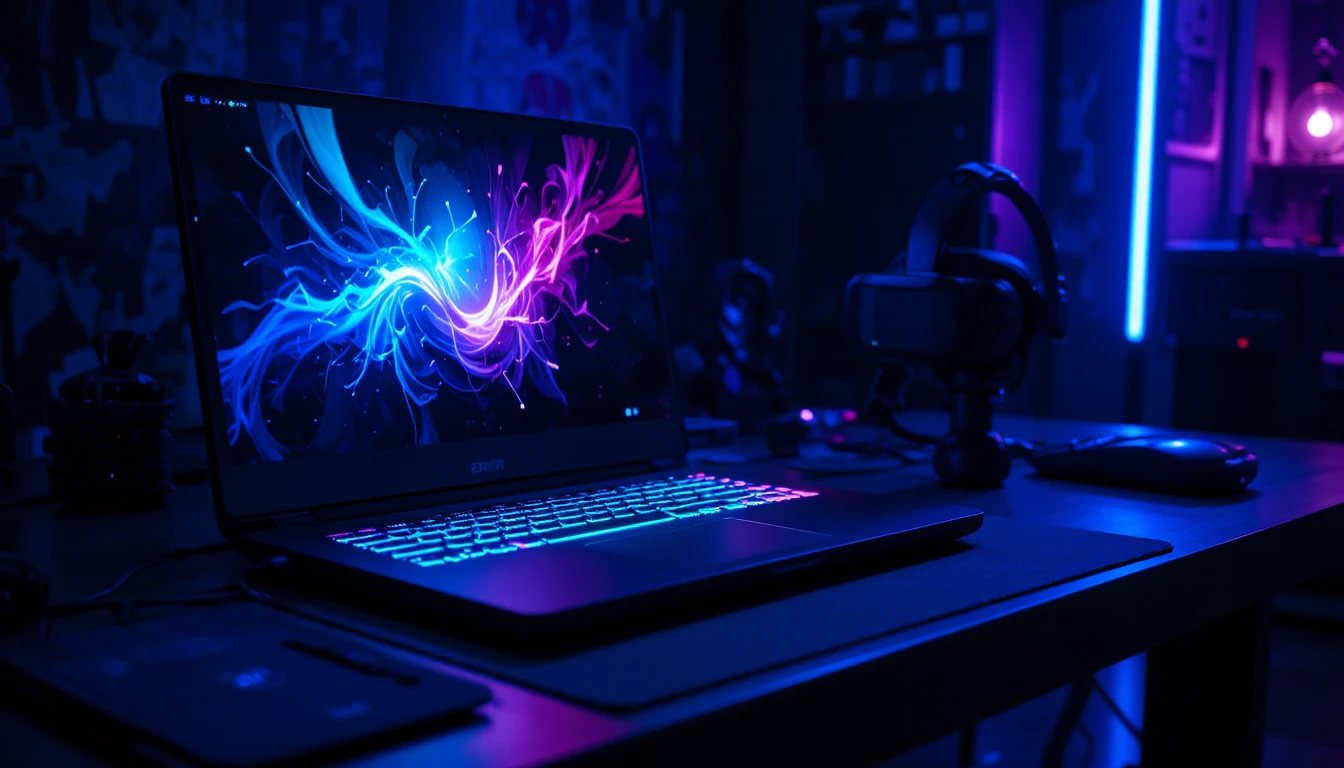
Virtual reality gaming is one of the most exciting experiences you can have on a laptop today. But to get the best out of it, your hardware needs to be properly set up. If you are wondering how to optimize gaming laptop for vr, you are in the right place. A few smart adjustments can make the difference between a smooth, immersive VR experience and one that is laggy, blurry, and frustrating.
At LaptopGiant, we stock some of the best gaming laptops on the market — machines that are powerful, well-built, and ready for VR right out of the box. But even the best hardware needs the right settings to perform at its peak. This guide will walk you through everything you need to do.
Step 1: Check Your Laptop Meets VR Requirements
Before anything else, make sure your laptop is actually capable of running VR. Most VR headsets have minimum requirements that your laptop must meet. Here is what to look for:
GPU: A dedicated graphics card is a must. NVIDIA RTX 3060 or higher is recommended for smooth VR performance
CPU: A modern processor with at least 6 cores — Intel Core i7 or AMD Ryzen 7 and above
RAM: At least 16GB of RAM for VR gaming — 32GB is even better for demanding titles
USB ports: Most VR headsets need at least one USB 3.0 port
Display output: Make sure your laptop has the right port for your headset — HDMI or DisplayPort
At LaptopGiant, every gaming laptop we sell is chosen for its real-world performance. Our machines are not just spec sheets — they are tested and reliable, and many of them are fully VR-ready right from the start.
Step 2: Update Your Graphics Drivers
This is one of the most important steps when learning how to optimize gaming laptop for vr. Outdated GPU drivers are one of the top causes of VR performance issues — stuttering, dropped frames, and crashes.
Go to the NVIDIA or AMD website and download the latest drivers for your graphics card. Do not rely on Windows Update for this — always get drivers directly from the manufacturer for the most up to date version. After installing, restart your laptop before launching any VR application.
Step 3: Set Your Laptop to High Performance Mode
By default, many laptops run in a balanced power mode to save battery. This is fine for everyday tasks but terrible for VR gaming. Here is how to fix it:
Go to Windows Settings and open Power and Sleep settings
Click on Additional power settings
Select High Performance mode
If your laptop has a dedicated gaming software or control panel, also set it to performance mode from there
This ensures your CPU and GPU are running at full speed and not throttling themselves to save power during your VR session.
Step 4: Plug In Your Laptop
This sounds simple but it matters a lot. Running VR on battery power forces your laptop to limit its performance to preserve charge. Always keep your laptop plugged into the wall when doing any VR gaming. This alone can give you a noticeable boost in frame rate and overall smoothness.
Step 5: Close Background Apps and Processes
VR is very demanding on your system. Every app running in the background is stealing resources that your VR game needs. Before launching your VR headset software, close everything you do not need — browsers, music apps, cloud sync tools, and anything else running in the system tray.
You can use Task Manager to see which apps are using the most CPU and RAM and close them one by one. The cleaner your system is before you start, the better your VR experience will be.
Step 6: Adjust In-Game VR Settings
Knowing how to optimize gaming laptop for vr gaming also means knowing which in-game settings to adjust. Not every game needs to run at maximum settings to look great in VR. Here are the best adjustments to make:
Lower the render resolution slightly if you are getting frame drops — the difference is barely noticeable in VR
Turn off motion blur — it causes nausea in VR and costs performance
Disable anti-aliasing or set it to a lower level
Set shadow quality to medium instead of ultra
Keep texture quality high — it has less impact on frame rate but keeps visuals sharp
These small changes can take you from an unplayable experience to a smooth 90 frames per second which is the sweet spot for comfortable VR gaming.
Step 7: Keep Your Laptop Cool
Heat is the enemy of performance. When a gaming laptop gets too hot, it throttles its CPU and GPU to protect itself — and your VR experience suffers badly. Here is how to keep temperatures under control:
Use your laptop on a hard flat surface — never on a bed or couch that blocks the vents
Invest in a good laptop cooling pad
Clean the vents regularly with compressed air to remove dust buildup
Make sure the room you are gaming in is not too warm
At LaptopGiant, the gaming laptops we carry are built with strong thermal management systems. Our customers consistently praise how well these machines handle heat even during long and demanding gaming sessions — including VR.
Why LaptopGiant Is the Right Choice for VR Gaming
If you are serious about VR gaming, you need a laptop that is serious about performance. At LaptopGiant, we do not just sell laptops — we help you find the right machine for your specific needs. Our gaming laptops are handpicked for their GPU power, build quality, cooling systems, and overall reliability.
Whether you are a casual VR gamer or someone who wants to push the limits of what is possible, LaptopGiant has a laptop that will deliver. Our customers trust us because we are honest, knowledgeable, and we stand behind every product we sell.
Visit LaptopGiant today and find a VR-ready gaming laptop that will give you the smooth, immersive experience you have been looking for.
Shop VR Ready Gaming Laptops at LaptopGiant High performance builds · Reliable cooling · Tested for real gaming


Add comment